

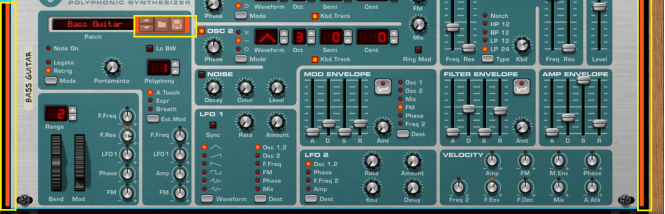
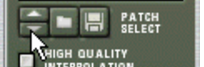
A patch contains settings for a specific device. Patches can be either separate files on your hard disk or files embedded in a ReFill (see “About ReFills” for info about ReFills). A Rack Extension often comes with patches embedded within the Rack Extension itself.






|
For more details about browsing patches and searching for sounds, please refer to “Browsing patches for a device” and “Filtering in the Browser”.
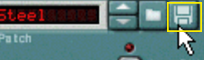
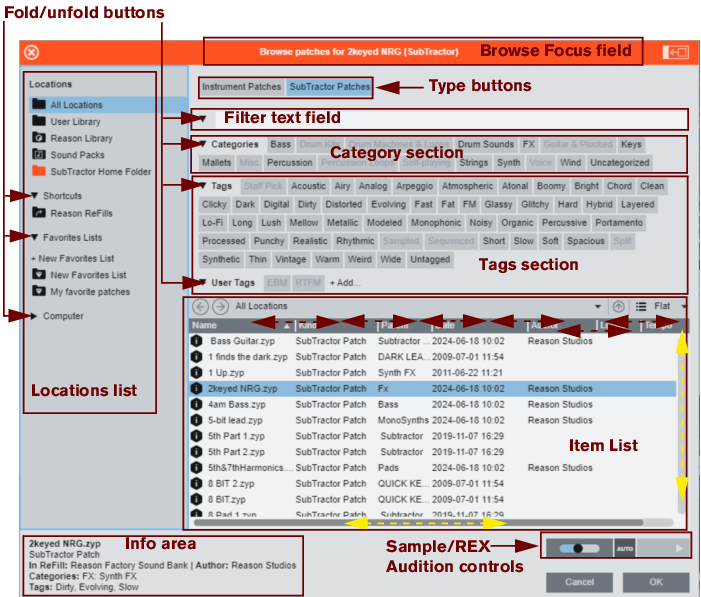
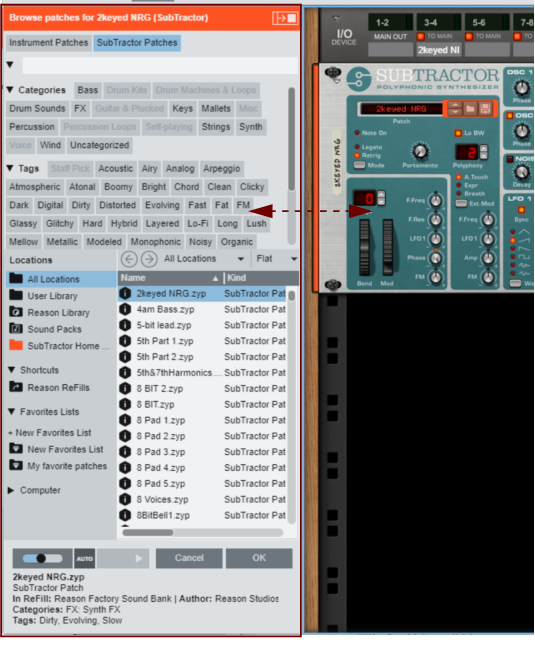

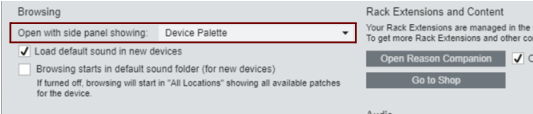
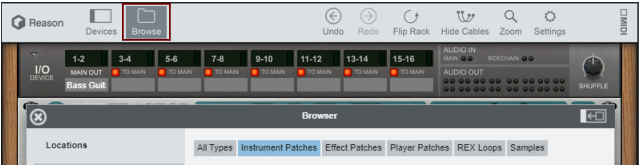
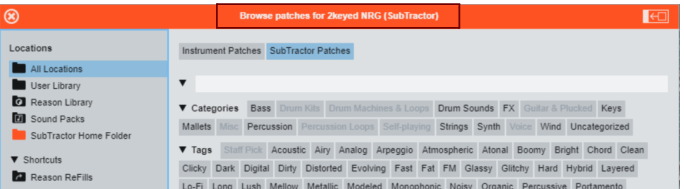
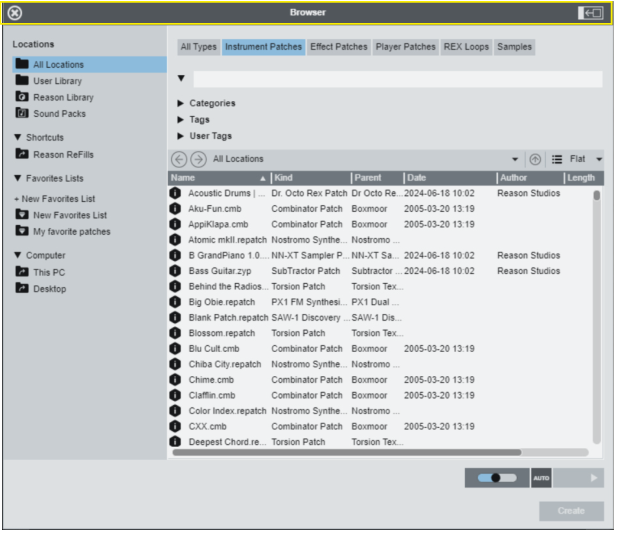
For example, set browse focus from a Subtractor device by clicking its Browse Patch button. Instead of limiting the Browser to show only Subtractor patches, you can choose to browse for any type of instrument patch. If you select a patch with a different format than the device you are browsing from, the original device will be replaced by the new device. See “Browsing patches for a device”.
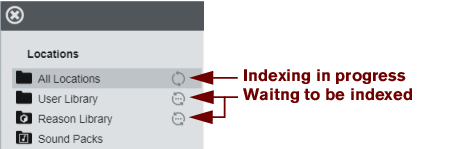
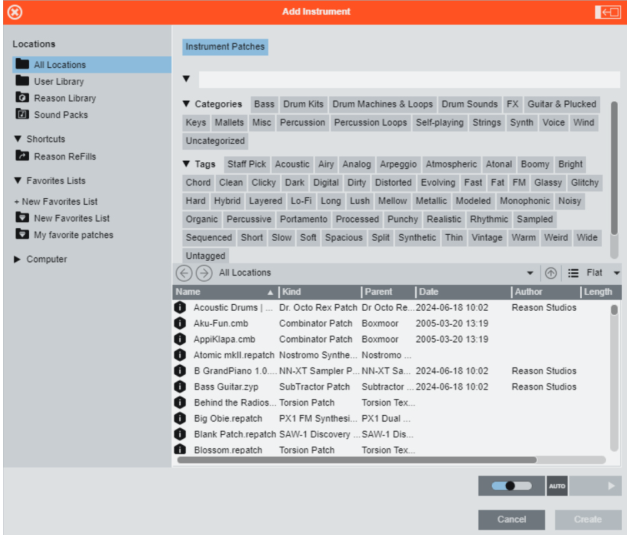
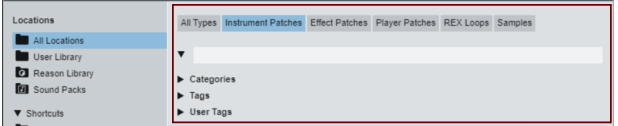
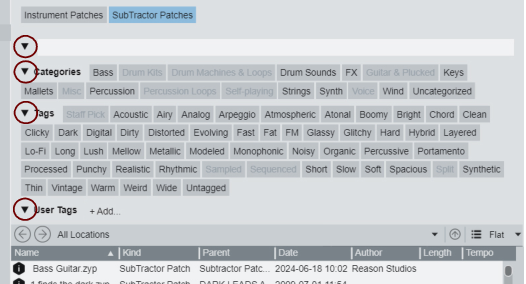
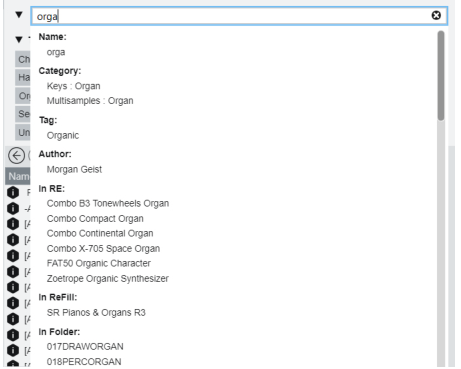
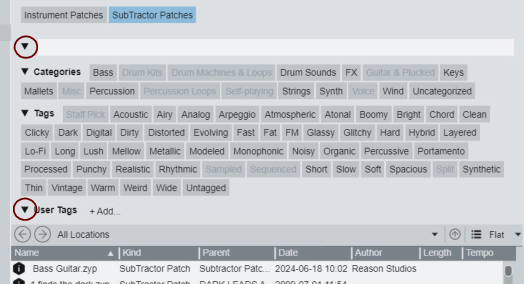
You can use the category and tag buttons to filter which patches are shown (or type directly into the filter text field to filter by name, category, kind or tag). See “Filtering in the Browser”.
Select “Add Effect...” to open the browser in Add Effect mode.
See “Creating devices” for more information.
See “Creating devices” for more information.
Select “Add Player...” to open the browser in Add Player mode.
See “Creating devices” for more information.
See “Creating devices” for more information.

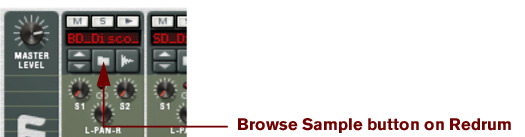
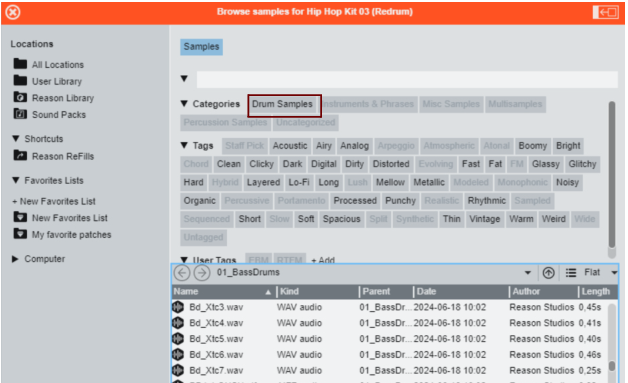

See the “Kong Drum Designer” chapter for details.
See the “Dr. Octo Rex Loop Player” chapter for details.
|
•
|
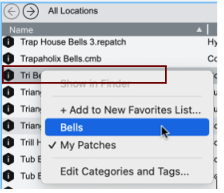
You can select several files to add them to a Favorites List in one go - see “Favorite Lists”. Note that this is only possible if a device does not have Browse Focus, see “Using the browser without Browse Focus”.
|

|
•
|
|
|
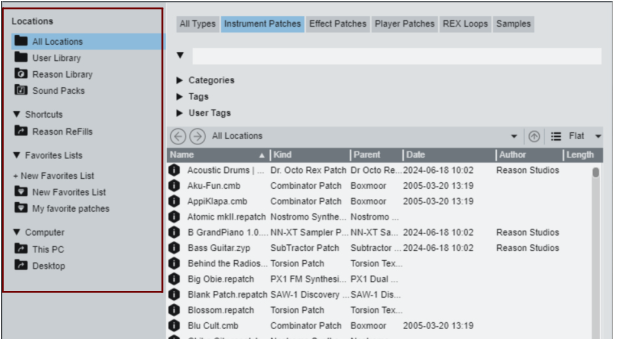
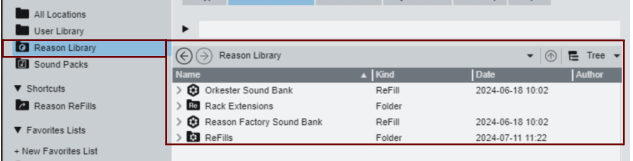
These are not included in "All Locations" and therefore filtering cannot be used here (see below). Use these for navigating to folders that you want to add as Shortcuts (see “Shortcuts”).



|
•
|
|
•
|
|
•
|
|
•
|
|
•
|
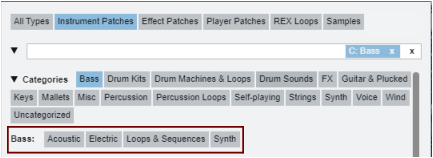
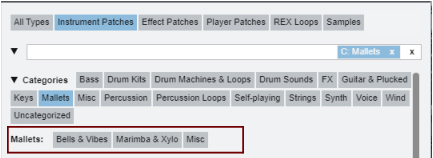
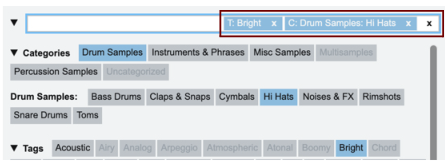
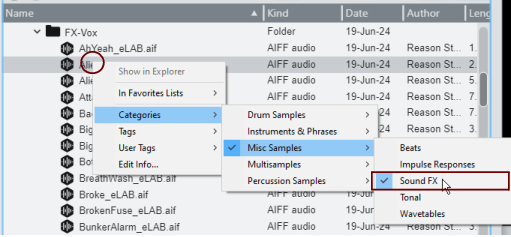
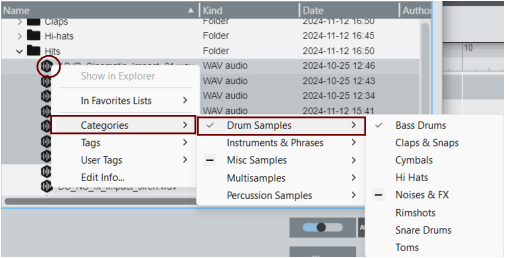
For example, if you want to categorize and tag all patches in a certain folder, navigate there. The items must be part of the indexed locations; if you have custom patches in a folder on your hard drive you need to add that folder as a Shortcut first, see “Shortcuts”.
|
2.
|
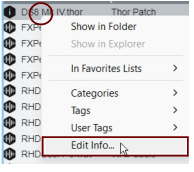
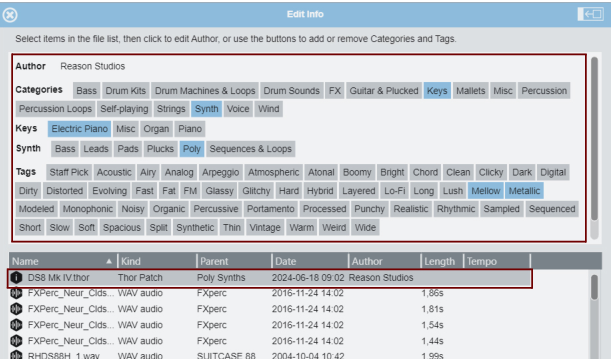

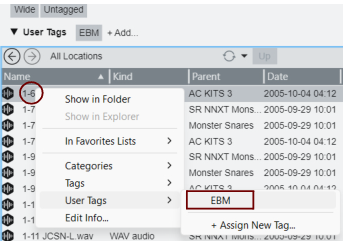
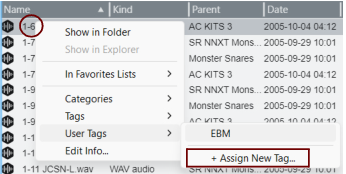
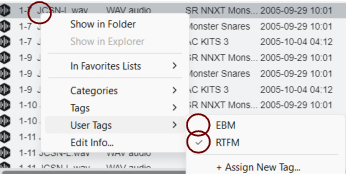
In such cases you can edit and reassign according to the description in “Editing Categories and Tags” above.