


|
•
|


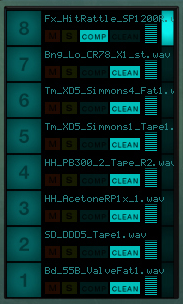
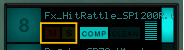
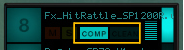
Clicking the Clean button routes the audio straight to the Mixer section. Clicking the Comp button routes the audio to the Compressor, see “Compressor”. For “parallel compression”, i.e. to route the signal both to the Mixer unaffected and “in parallel” to the Compressor, click both buttons.
The Clean and Comp buttons are hardwired to the corresponding Clean and Comp buttons to the right of the Insert Effect section (see “Clean” and “Comp”).
This control is hardwired to the corresponding Volume slider to the right of the Insert Effect section (see “Vol”).
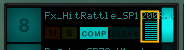
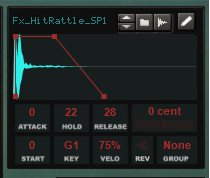
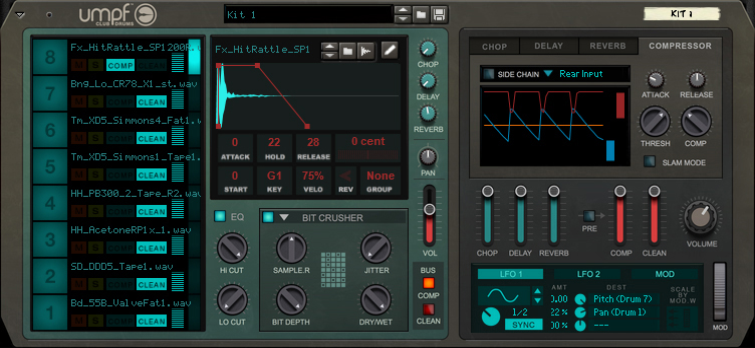
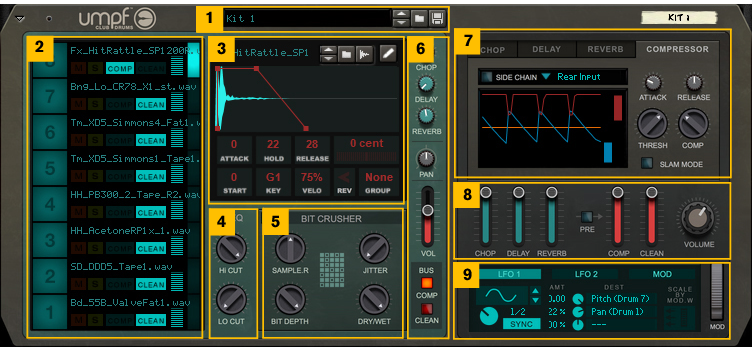
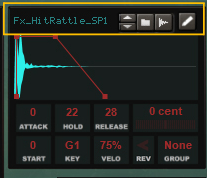
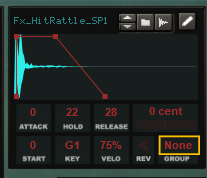
The Sample Playback section contains all sample related controls and parameters for the currently selected Drum Channel. The currently selected Drum Channel is indicated by the lit Drum Channel selection button (see “Selecting a Drum Channel”).

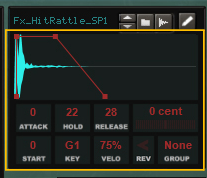
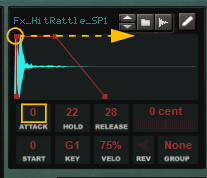
#Hold
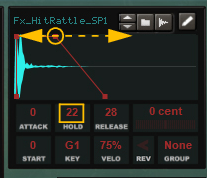
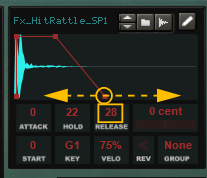
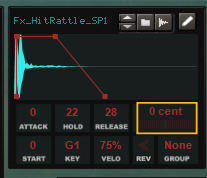
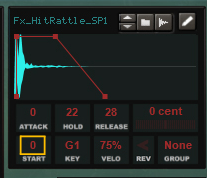
#Key
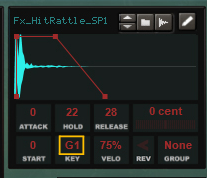
#Velo
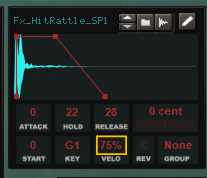
#Rev
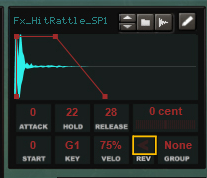

|
#Chop
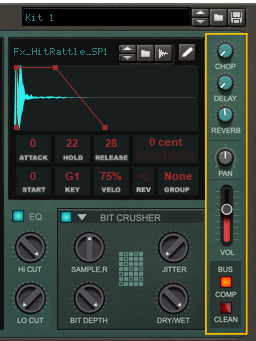
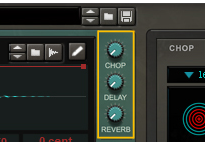
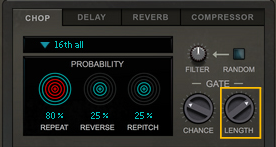
This works like a Send Effect level knob on a traditional mixer. See “Chop” for more information about the Chop send effect.
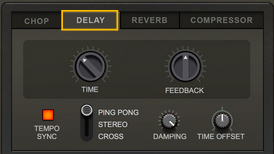
This works like a Send Effect level knob on a traditional mixer. See “Delay” for more information about the Delay send effect.
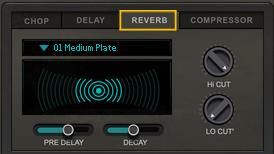
This works like a Send Effect level knob on a traditional mixer. See “Reverb” for more information about the Reverb send effect.
#Pan
#Vol
#Comp
|
|
#Chop
|
•
|
|
•
|
|
•
|
|
•
|
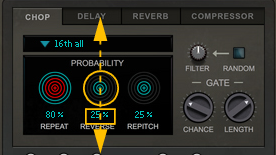
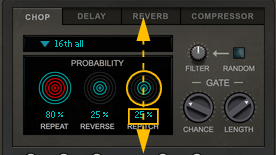
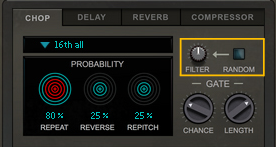
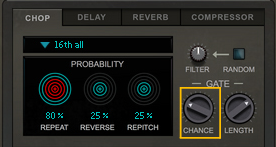
#Time
#Comp
#Chop
#Pre
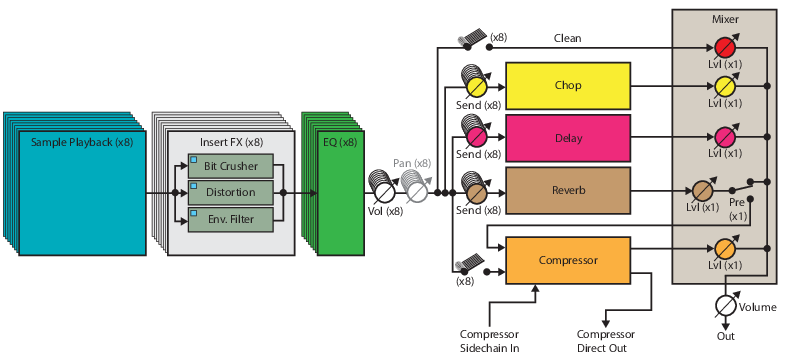
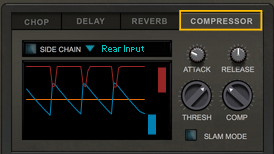
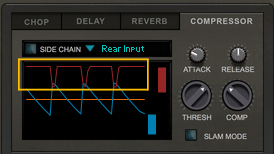
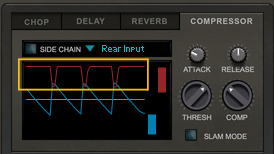
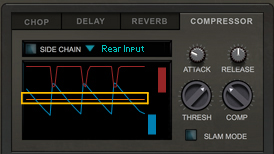
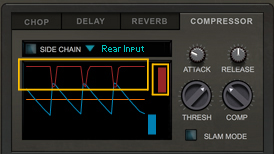
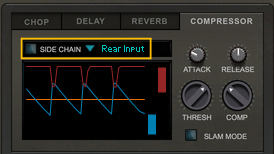
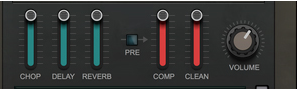
This can be great for creating “pumping” reverbs using side chain compression in the Compressor, see “Compressor”. Please, also refer to “Signal flow” for a graphical description of the routing.
#Comp

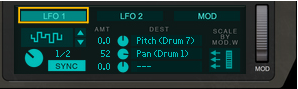
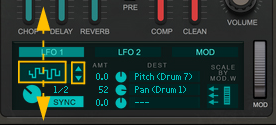
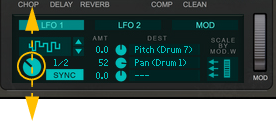
#Rate
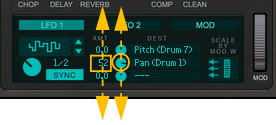
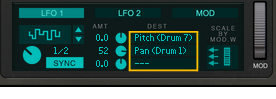
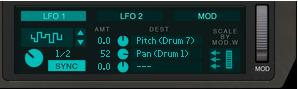
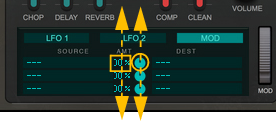
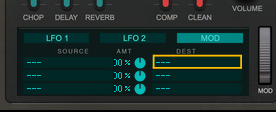
Please, refer to the “Modulation Matrix Destination parameters.” list for a complete list of assignable Destination Parameters.
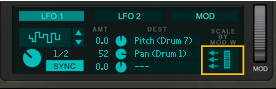
#MOD
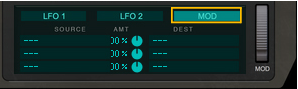
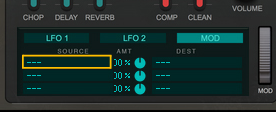
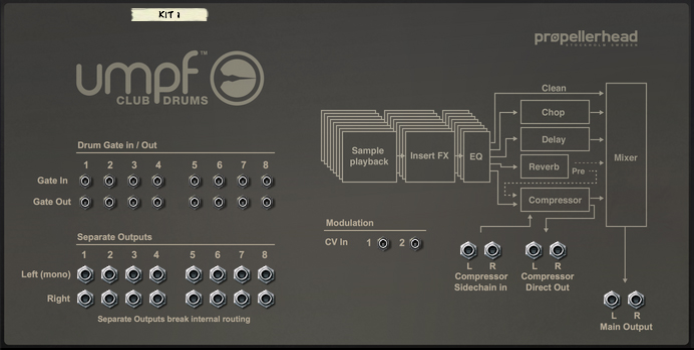
These CV inputs can be used for controlling desired destination parameters in the Modulation Matrix. In the Modulation Matrix, select CV1 or CV2 as Source parameters to control the desired Destination parameters. See “MOD” for more details about the Modulation Matrix.