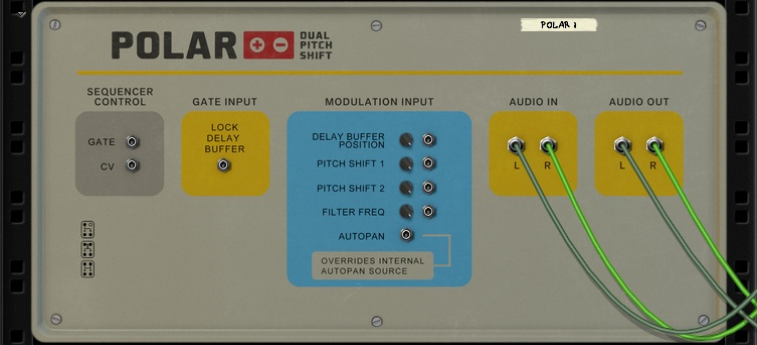


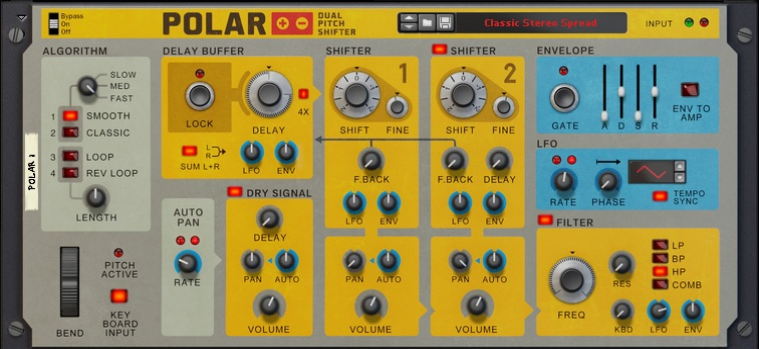
Now, you are all set for pitch shifting the audio on the Audio Track. For information about pitch shifting, see “Setting up for basic pitch shifting”.
Now, you are all set for live pitch shifting. For information about pitch shifting, see “Setting up for basic pitch shifting”. If you want to record your processed audio on an audio track in the sequencer, perform the following additional steps:
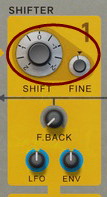

|
| Mode
|
|
|
•
|
|
•
|
|
•
|
#Loop
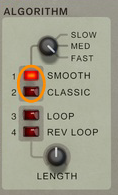
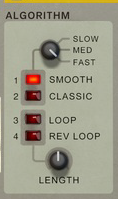
This algorithm lets you define your own fixed loop length (or “grain length” if you whish) with the “Length” knob. Since the loop length is fixed, using very short Loop Length settings can result in varying pitches depending on the pitch variations of the input audio material.
This algorithm works exactly like the Loop algorithm described above, except it plays back the audio loop reversed. This algorithm is perfect for creating really spooky vocal effects - especially if you turn the “Length” knob up a bit!
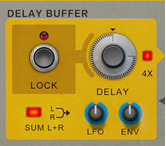
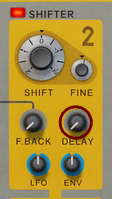
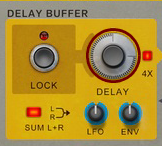
All audio that is input to Polar passes via the Delay Buffer. The Delay Buffer can be used for setting the feedback delay time for both Pitch Shifters sections. You can also manually play back audio from the Delay Buffer by locking it and controlling the playback position within the Delay Buffer, see “Lock (Buffer)”.

|
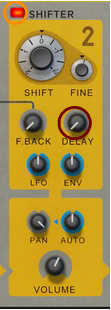
Note that at the lower end of the range, the Delay knob will only have an effect once it has reached the latency time introduced by the Slow/Medium/Fast parameter (see “Slow/Medium/Fast”). E.g, if you have set the Slow/Medium/Fast parameter to Fast, then it will not be possible to set a delay of less than 24ms.
|
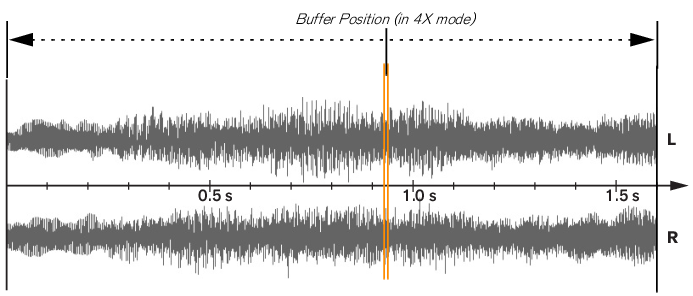
In “Lock” mode, the Delay knob controls the playback position within the Delay Buffer, see “Lock (Buffer)”.
#LFO
#Env

|
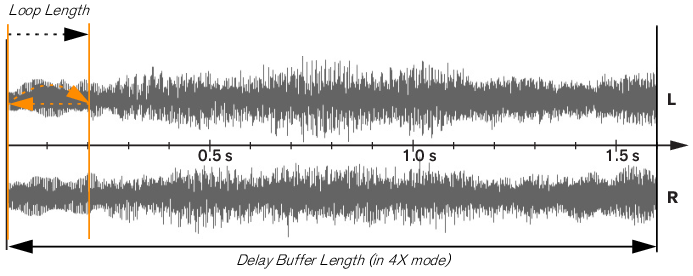
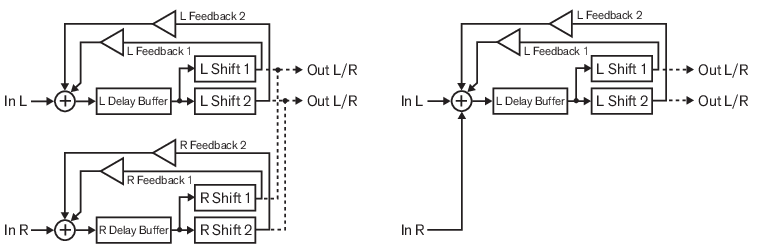
Depending on which Pitch Algorithm (see “Algorithm”) you have selected, the playback result will be different. The figures below show what happens in the different scenarios:
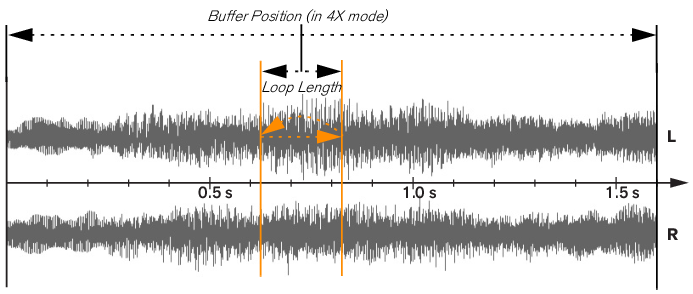
By turning the Delay knob you can move the loop position within the Delay Buffer. You set the loop length with the “Length” knob and define the loop type with the “Loop” and “Reverse Loop” buttons.
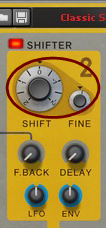
#Fine
#LFO
#Env
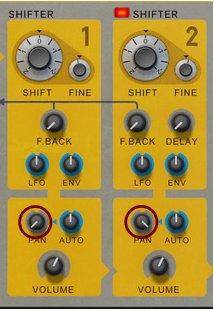
#Pan
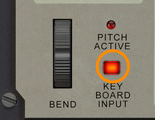
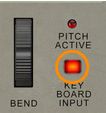
Polar responds to MIDI Note data. MIDI Notes can be used for controlling the pitch shift amount and also for triggering the Envelope section (see “Envelope section”).
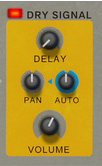
#Pan
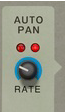
The parameter is bipolar which means that you can define the initial direction of the panning effect. This is very useful if the Pitch Shifters also use the auto pan function. The Auto Pan rate is set with the Auto Pan Rate control, see “Auto Pan”.

|
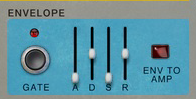
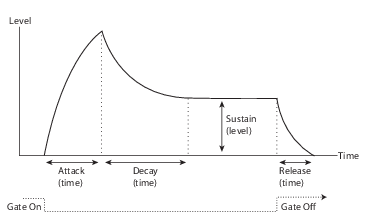
#Gate
Click the Gate button to gate the envelope. The envelope can also be gated from a connected MIDI keyboard - if you have created a sequencer track for Polar and the track has keyboard focus - or by sending a CV signal to the Gate In input on the rear panel, see “Gate”.
This works just like the Decay parameter, except it determines the time it takes for the value to fall back to zero after releasing the Trig button.
#Rate
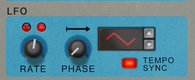
Sets the LFO rate. The LEDs above the Rate knob indicate the current rate. The rate can also be synced to the sequencer tempo by clicking the Tempo Sync button below the Waveform selector (see “Tempo Sync”).
|
•
|
|
•
|
|
•
|
|
•
|
Click the Sync button to sync the LFO Rate to the sequencer tempo. In Sync mode, the Rate knob controls the sync resolution, see “Rate”.
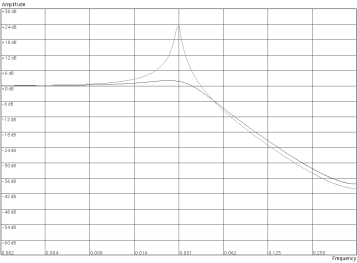
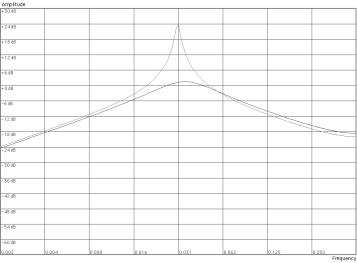
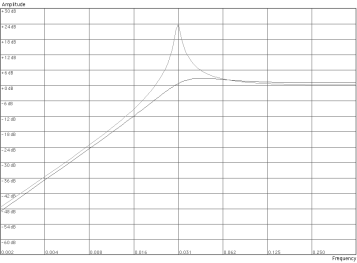
|
•
|
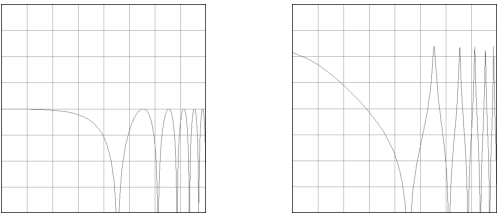
#Freq
#Res
#Kbd
#LFO
#Env